
Xtream Codes for LemoTV Explained
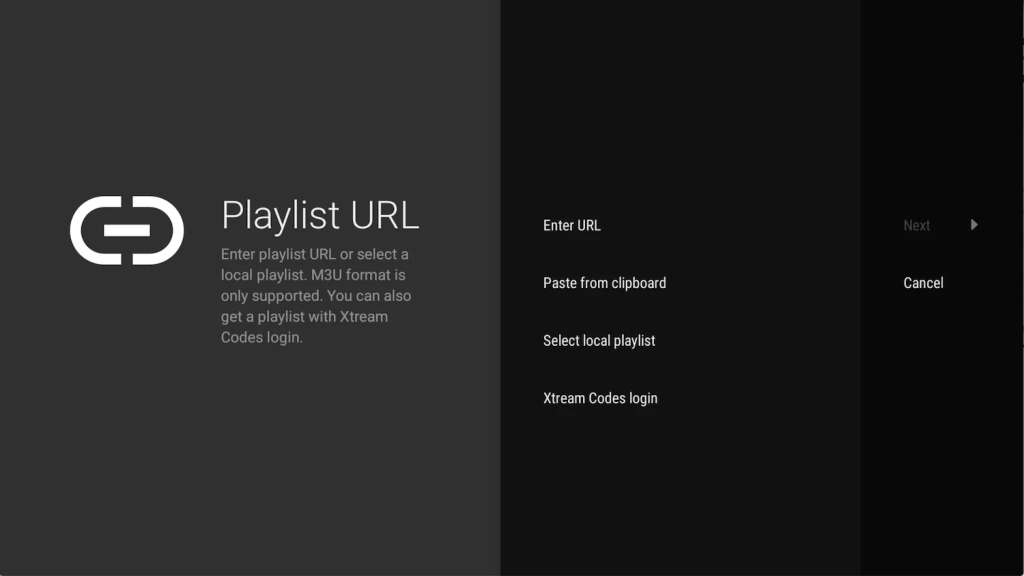
Xtream Codes is the login type LemoTV sends after you buy. It is three fields: server / portal URL, username, and password. Apps such as TiviMate and IPTV Smarters ask for Xtream Codes on Add playlist. Also M3U is a single playlist link. Therefore use Xtream Codes when the email gives a portal. Use M3U […]
LemoTV on iPhone: GSE Setup
This lemotv iphone guide uses GSE Smart IPTV. First buy a plan on pricing. Then install GSE from the App Store. Full taps: GSE setup. Also iPad uses the same steps. Therefore one login works on both if you only play one screen at a time. Add LemoTV on iPhone lemotv iphone tips Do not […]
LemoTV on Windows PC

A lemotv windows setup is a backup for laptops and desktops. First buy a plan on pricing. Then install VLC or another PC player from downloads. Also VLC has no TV guide like TiviMate. Therefore use it when you are at a desk. For a living room, prefer Firestick. See VLC guide. How to open […]
IPTV Smarters for LemoTV
IPTV Smarters is a common LemoTV app on Android, Firestick, and phones. First buy a plan on pricing. Then install Smarters from downloads or the store. Also skip random playlists. Therefore use the Xtream login from your LemoTV email. Next name the list LemoTV so you can find it later. Add LemoTV in IPTV Smarters […]
LemoTV on Smart TV: Samsung and LG
This lemotv smart tv guide is for Samsung and LG owners who want LemoTV without a Firestick. First buy a plan on LemoTV pricing. Then install Smart IPTV or Home IPTV. However, many Smart TVs cannot run TiviMate. Therefore you copy a MAC or TV ID and upload the M3U on a phone. Full taps: […]
LemoTV on Android TV: Full Setup
A lemotv android tv setup works on Chromecast with Google TV, Nvidia Shield, and most Android TV boxes. First pick a plan on pricing. Then install a player from downloads. Also keep your LemoTV email open. It has the portal, username, and password. Next you will add those details as Xtream Codes. Why people use […]
How to Install LemoTV on Firestick

This lemotv firestick guide is for Amazon Fire TV Stick users who want live TV, sports, movies, and series. First buy a plan on LemoTV pricing. Then install a player and add your login. Therefore you do not need a cable box. Also you only need stable Wi-Fi. Next keep the portal URL, username, and […]
How to set up LemoTV on VLC
This VLC player guide is the backup path for LemoTV on a PC. Open the M3U, then confirm Live works before you travel. VLC plays a LemoTV M3U on Windows, Mac, Android, and iOS. It is a backup player. It has no TV guide like TiviMate. This guide shows how to open the playlist. What […]
How to set up LemoTV on Kodi
This Kodi IPTV guide adds LemoTV with PVR IPTV Simple Client. Enable the add-on, paste the M3U, then open TV. Kodi can play LemoTV with PVR IPTV Simple Client. This path is for people who already use Kodi. Most LemoTV users should use TiviMate on a TV remote instead. See the TiviMate guide. What you […]
How to set up LemoTV on Duplex IPTV
Duplex IPTV is another Android and Firestick player for LemoTV. Use it if you want a different layout from TiviMate. You add LemoTV with Xtream Codes. What you need How to add LemoTV Step 1. Install Duplex Install from the store or the APK on downloads. Open the app. Step 2. New playlist Tap New […]